1.5 Software setup#
Note
Click here to download the newest installation package for AIRBOT Play Pro.
Environment setup#
Python environment setup#
Run following command to install our Python3 package.
sudo apt update
sudo apt install python3-pip
python3 -m pip install --upgrade pip
python3 -m pip install --upgrade setuptools
python3 -m pip install airbot_py-4.0.0-py3-none-any.whl
Please refer to docs Python API for specific usages.
OTA Upgrade#
Note
If you don't know whether need to upgrade your firmware, please contact us for help.
upgrade file#
- The upgrade file used for system upgrade is named airbot_system_
- The upgrade file used to apply the upgrade is named airbot_appimage_
- Upgrade file used for firmware upgrade. The name rule is airbot_firmware_
Transfer the upgrade file#
- Connect the computer to the Pro arm through the network cable
- Power on the Pro arm and wait for about 30 seconds until the light effect turns white
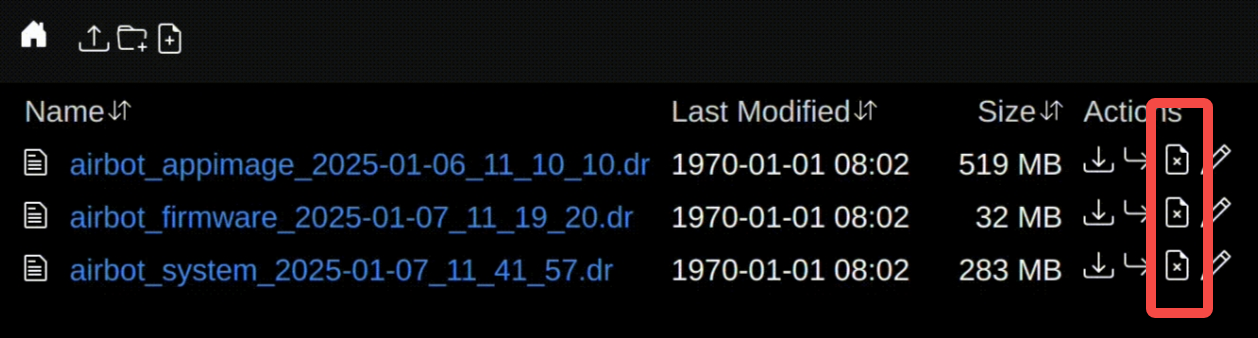
- computer browser visit: http://192.168.254.10:15000, will be. Dr Suffix upgrade file drag and drop to the upload within the browser window, waiting for the file upload is complete
Start upgrade#
- Go to the command line and enter the following command (replace
with the actual upgrade file name used)
- To view the upgrade progress, run the following command
NOTE
When "FINISHED" appears, the upgrade is complete
- Power off and restart (When upgrading firmware, power off for 1 minute and then power on. No need to wait after power failure during other upgrades)
- After the upgrade, delete upgrade source file on the http://192.168.254.10:15000 website