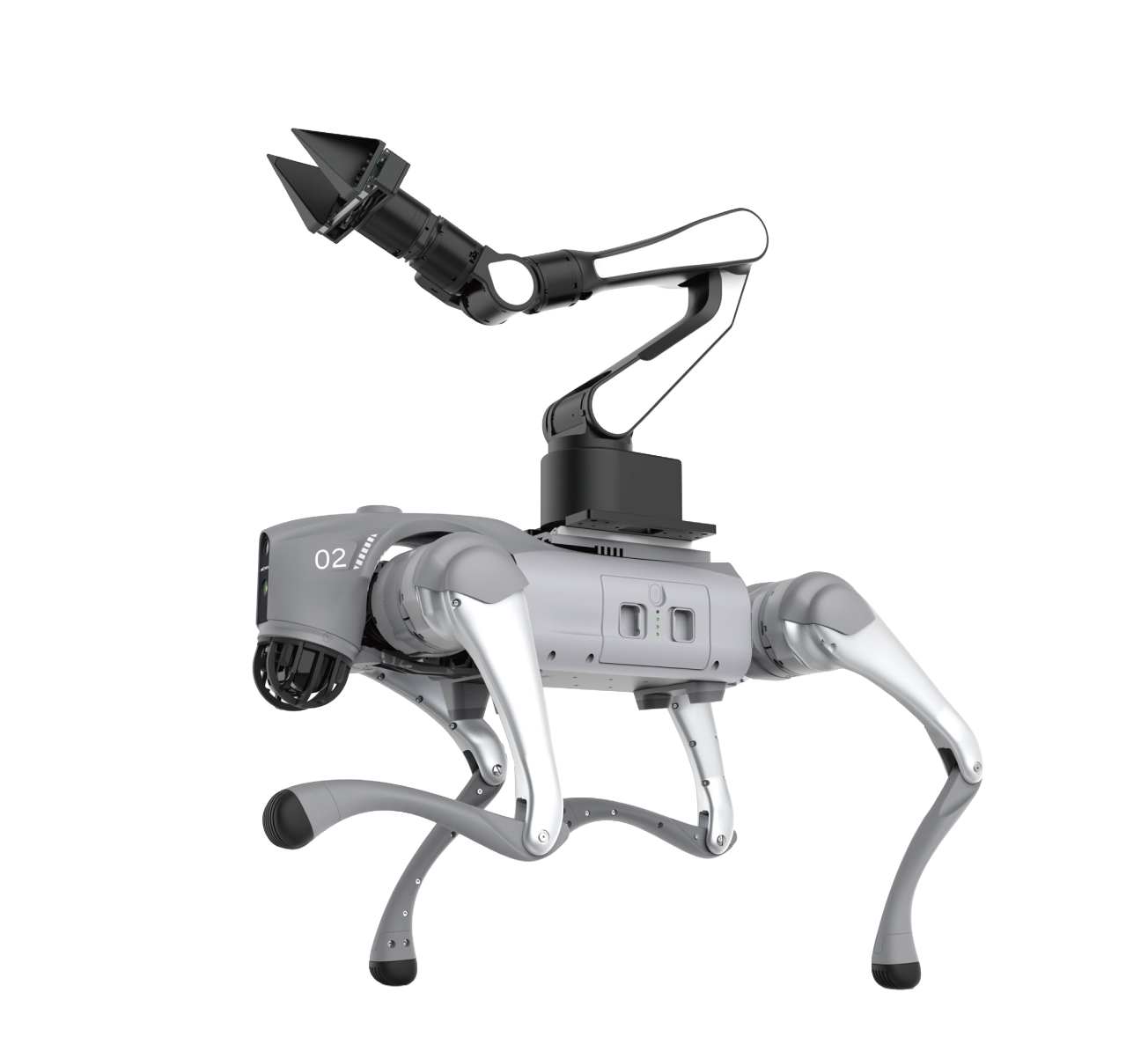
Quick Setup
> Stage 1: Basic GO2edu Configuration
Configuration#
1. Connect to the GO2edu Host Computer (NX)#
Ethernet Connection#
Connect the computer to the GO2edu Ethernet port with an Ethernet cable. Configure IPv4 on the computer, and then try to access the quadruped robot's host computer.
Configure the IP Address#
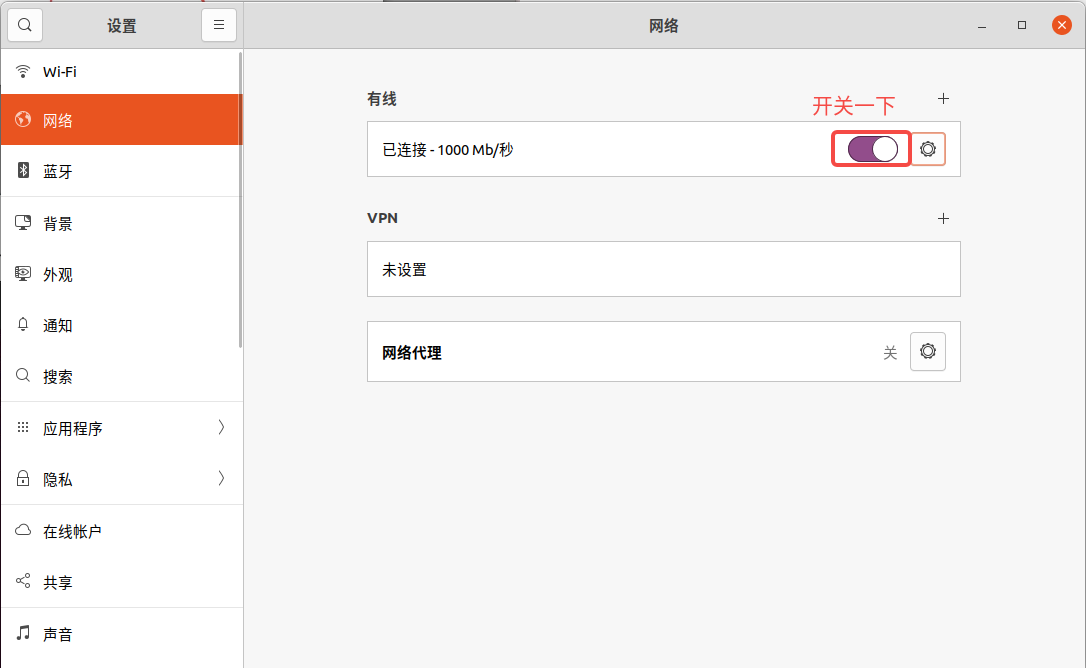
Follow the steps shown in the figures below (Figures 1, 2, 3, and so on) to open Settings and modify IPv4.
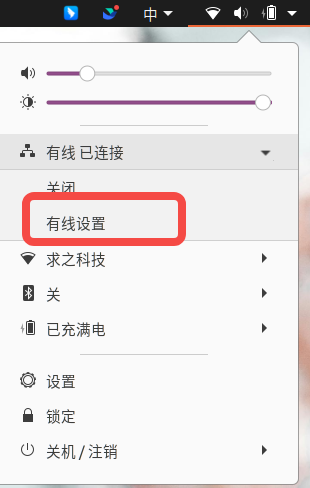
1
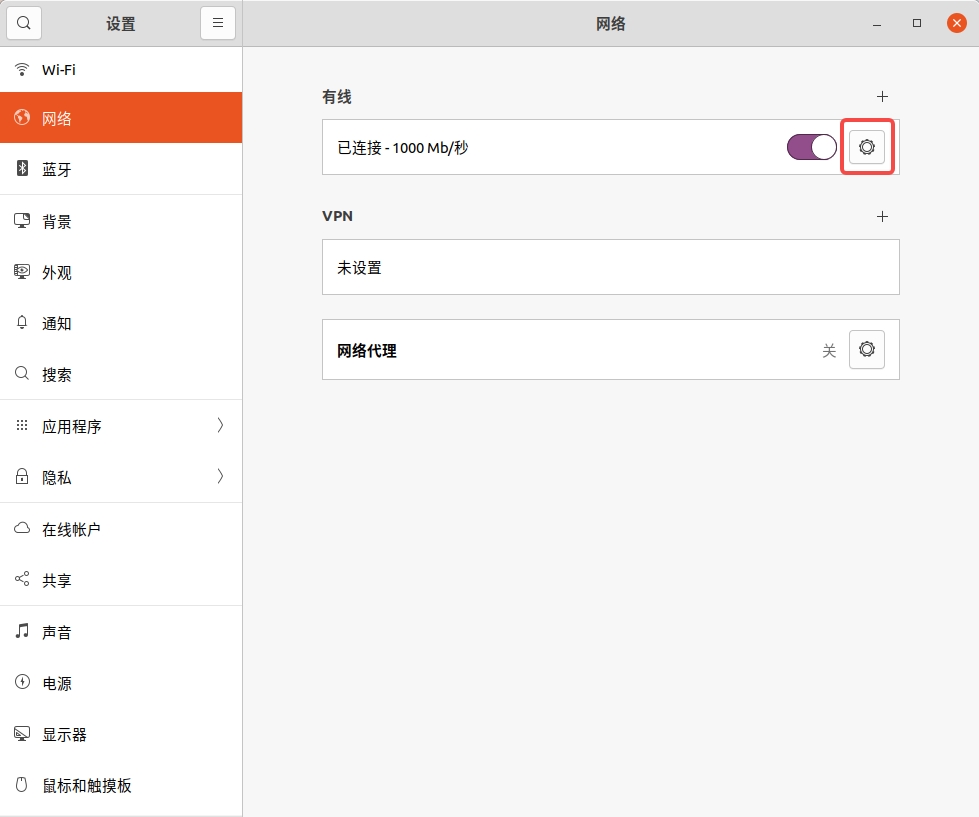
2
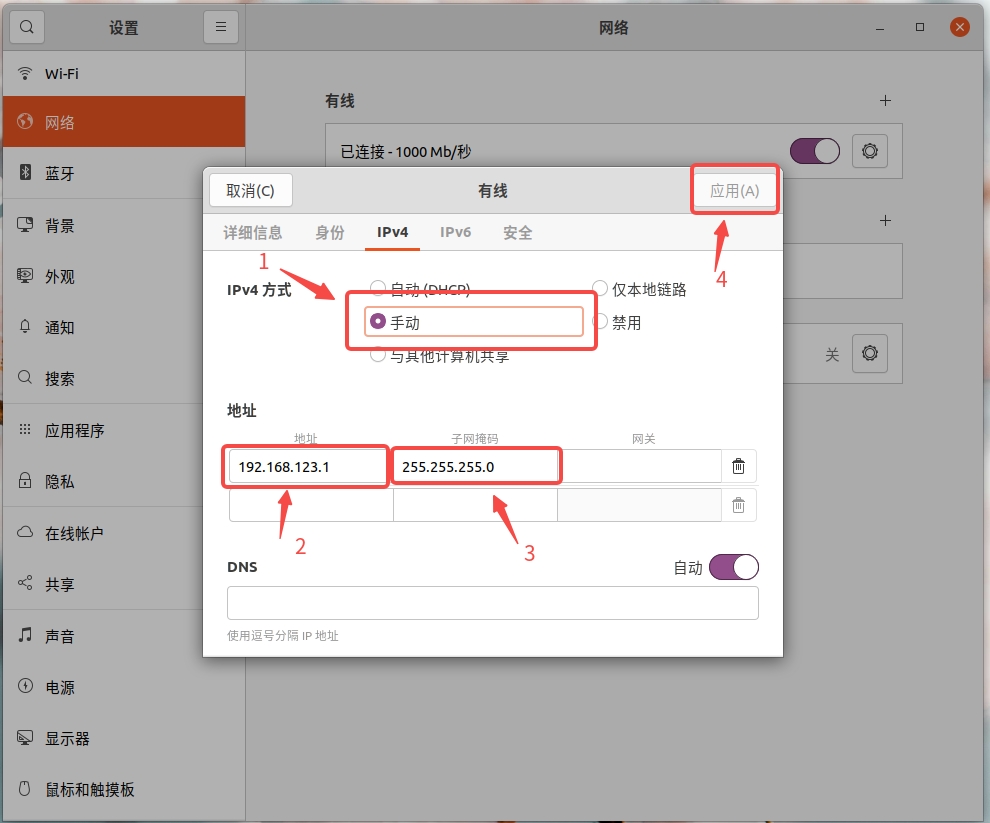
3
4
Test Connectivity#
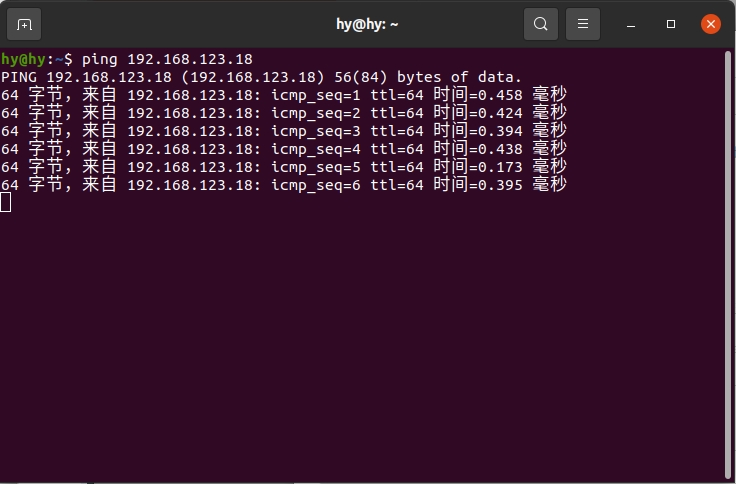
Open a terminal and check whether the target responds to ping.
2. Install the Network Adapter Driver#
View the attachment AX900.zip in the DingTalk document.
Download and Extract AX900.zip#
# 1. Go to the directory containing the archive (replace /path/to/your/directory with the actual path)
cd /path/to/your/directory
# If the file is in the system Downloads folder, use:
# cd ~/Downloads

# 2. Extract AX900.zip
unzip AX900.zip

# 3. Enter the extracted AX900 folder
cd AX900

# 4. List the folder contents
ls
Upload the Driver Files (Remove the Network Adapter First)#
-
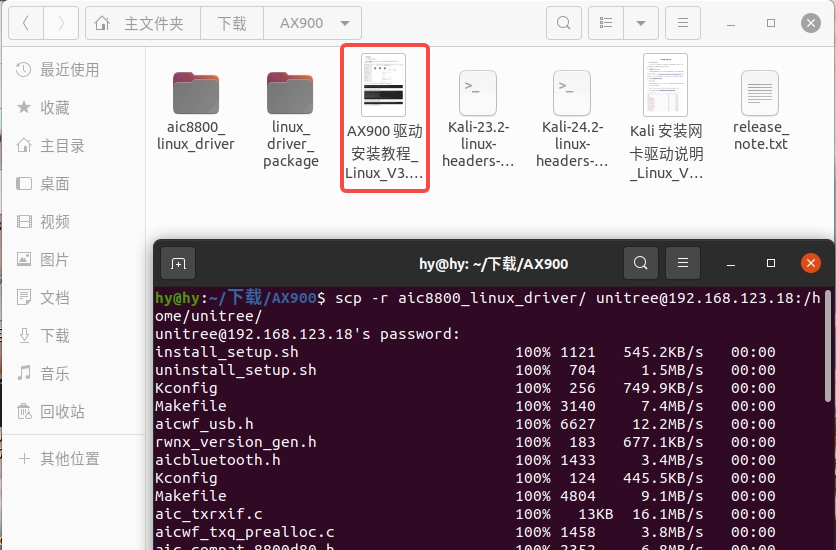
Transfer the driver files to the quadruped robot's host computer.
-
Follow the driver installation guide to install the driver.
3. Check Wi-Fi Networks#
After completing the installation according to the guide, insert the wireless network adapter. Wait 10s, and then run the following command. The installation is successful if Wi-Fi networks are listed.